
How Do I Link My GoDaddy, Google Domains, or Namecheap Domain to AWS?
If you landed on this blog, it's likely because you are unfamiliar with the process of associating your existing domain—whether registered on GoDaddy, Google Domains, or Namecheap—with an AWS Management Console account. Rest assured, C4C7OPS is here to walk you through this procedure clearly and simply.
Si llegaste a este blog es porque no conoces el proceso para asociar tu dominio existente ya sea en GoDaddy, Google Domains o Namecheap con una cuenta en la consola AWS, pero tranquilo C4C7OPS está aquí para enseñar este proceso de forma clara y sencilla, tal y como nos gusta.
Primero debemos tener claro que el proceso de asociar un dominio de cualquier proveedor de alojamiento diferente a AWS no indica que se transfiera su dominio a AWS, sino que realizaremos un enlace entre AWS y su cuenta de alojamiento web.
En este caso vamos a establecer la ruta para realizar esta vinculación para los siguientes proveedores de dominio:
- GoDaddy
- Google Domains
- Namecheap
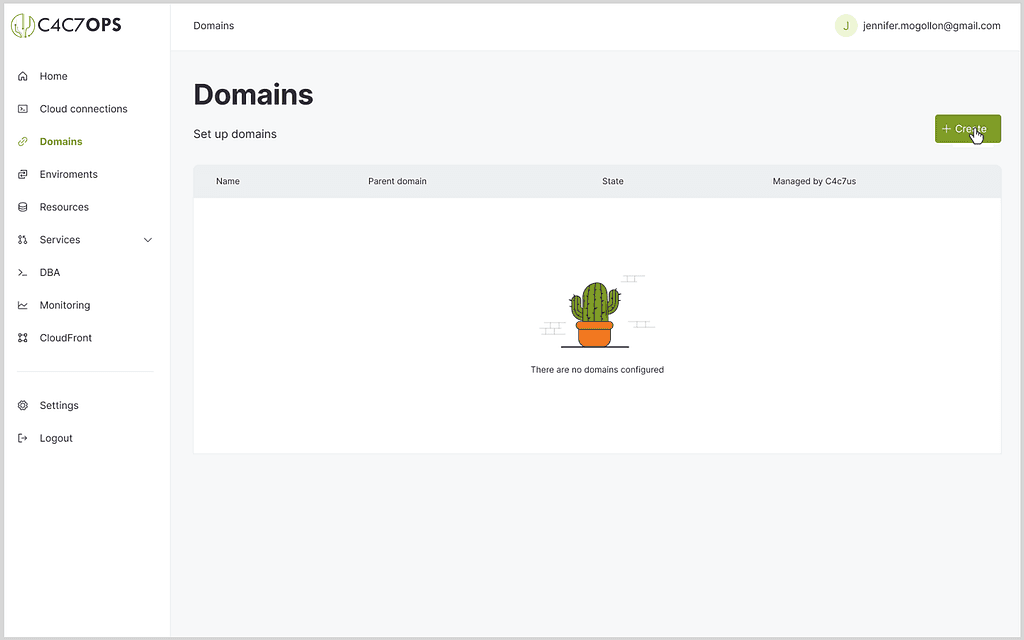
Para empezar nos dirigiremos a la consola de C4C7OPS y allí pulsamos ‘Create’

Entonces creamos nuestro dominio de la siguiente manera:
- En el campo ‘Domain’ escribiremos el nombre del dominio que deseamos vincular con AWS
- Para este caso dejaremos el campo ‘Parent domain’ vacío
- En ‘Api Keys’ seleccionaremos las claves creadas anteriormente
- Si no has realizado un proceso de conexión entre AWS y la consola de C4C7OPS por favor ve a Conectando la consola de C4C7OPS con AWS
- En el campo ‘Management options’ por favor selecciona ‘Create a new hosted zone on AWS for this domain’, con esto se crearán los registros necesarios sobre AWS para realizar el proceso de vinculación con las diferentes plataformas de alojamiento web.

Cuando el registro del dominio se encuentre en estado ‘Running’ podremos dirigirnos hacia AWS

Now, in AWS if we go to Route 53 > Hosted zones we will be able to find the created domain, we enter it and we will have in view the records (Records) created for this domain, these are important for later.
At this moment we go to our web hosting provider to continue with the linking.
Linking my domain in GoDaddy with AWS
If we are in GoDaddy the linking process is as simple as:
1. Being in 'My Products', we go to the options button of the domain we want to link and then click on 'Manage DNS'
2. Now in this new window we will go down until we find in 'Advanced Features' the option 'Export Zone File (Unix)'

3. Then we will go to AWS and in the created domain we click the 'Import zone file' button there we will paste the contents of the file obtained from the previous step, it is important to delete the SOA and NS data, since these were created previously when creating the domain in AWS, finally we click 'Import'


4. We go to the NS record (in its 'Record name' should be the name of the domain to link) and copy the 'name servers' located in 'Value/Route traffic to'

5. Now, being on the GoDaddy screen (step 1), we look for 'Nameservers' and click on the 'Change' button

6. In the modal that opens, we go to the 'Enter my own nameservers (advanced)' option, after this we will paste each 'nameserver' copied from AWS removing the period (.) from the end of each one, and we save


7. Now a new modal will open asking for consent to update the 'Nameservers', we grant it and click 'Continue', with this we will finish the linking process

This process normally takes less than an hour to apply the changes, however, it can take up to 48 hours.
Images taken from Migrate GoDaddy Domain and DNS to AWS Route 53
Linking my domain in Google Domains with AWS
Once in your Google Domains account we will perform the following steps to complete the linking process:
1. First we click on 'My domains' and then on the domain involved, in the new view that we will have, in the left navigation bar we go to 'DNS' there at the top we will have the 'Export resource records' option


2. Then we will go to AWS and in the created domain we click the 'Import zone file' button there we will paste the content of the file obtained from the previous step, it is important to remove the SOA and NS data, since these were previously created when creating the domain in AWS, finally we click 'Import'
3. Ahora volviendo a la ventana de ‘Google Domains’, dentro del dominio en la opción ‘DNS’ Validamos y si es necesario cedemos permisos para modificar DNS, esto lo haremos pulsando sobre Disable DNSSEC


4. Seleccionamos ‘Custom name servers’ para así registrar los ‘name servers’ generados en el proceso de creación de dominio en AWS, y pulsamos el botón ‘Save’

5. Ahora, para que nuestro dominio use esta nueva configuración, en la parte superior de la pantalla estará la opción ‘Switch to these settings’, con esto se termina nuestro proceso de vinculación
Imágenes tomadas de How to Change Nameservers in Google Domains & Google Domains
Vinculando mi dominio en Namecheap
Para realizar el proceso de integración del dominio con AWS tuvo que iniciar sesión en su cuenta de Namecheap, luego de esto:
1. Nos dirigimos a ‘Domain List’ en la barra de navegación de la izquierda, en la lista mostrada pulsamos sobre ‘Manage’ en el dominio que deseamos usar, luego pulsamos sobre Advanced DNS, para así en la fila ‘HOST RECORDS’ distinguir los registros que debemos crear en el dominio creado en AWS.

2. Ahora, estando en la ventana de AWS Route 53, tenemos que replicar de forma exacta cada registro observado, a excepción de los valores NS o SOA si existen
3. Luego de crear los registros, nos dirigimos a la ventana de Namecheap en la que estábamos anteriormente y pulsamos sobre ‘Domain’ buscamos la etiqueta ‘NAMESERVERS’ y allí seleccionamos ‘Custom DNS’ y pegamos uno a uno los ‘name servers’ generados en AWS al crear el dominio removiendo el punto (.) del final de cada uno, y pulsamos en el ‘check’ (√) de lado derecho de los ‘name servers’

4. Con esto tendremos que esperar hasta 48 para que nuestra vinculación haya terminado
Para más contenido sobre tecnología, AWS, dominios, despliegues, y todo lo referente a desarrollo web síguenos C4C7OPS