
Deploy a Frontend Repository Using the C4C7OPS Console
Welcome to our web development blog! In this article, we explore how to deploy a frontend repository using the C4C7OPS console. If you are interested in learning how to take your web application to the next level and leverage the full power of C4C7OPS,
¡Bienvenido a nuestro blog sobre desarrollo web! En este artículo, exploraremos cómo desplegar un repositorio frontend utilizando la consola de C4C7OPS. Si estás interesado en aprender cómo llevar tu aplicación web al siguiente nivel y aprovechar al máximo la potencia de C4C7OPS, has llegado al lugar adecuado.
El frontend de una aplicación web es el rostro visible para los usuarios, la interfaz de usuario con la que interactúan, los estilos que dan vida a la aplicación y la lógica que permite una experiencia de usuario fluida. El despliegue correcto de un repositorio frontend es crucial para asegurarte de que tu aplicación esté disponible y funcione sin problemas.
En este artículo, te guiaremos paso a paso a través del proceso de creación y despliegue utilizando la consola de C4C7OPS.
Anteriormente, creamos nuestro primer ambiente de desarrollo en AWS, si te lo perdiste visita nuestro artículo sobre integración de git, AWS y C4C7OPS.
Creación del servicio frontend
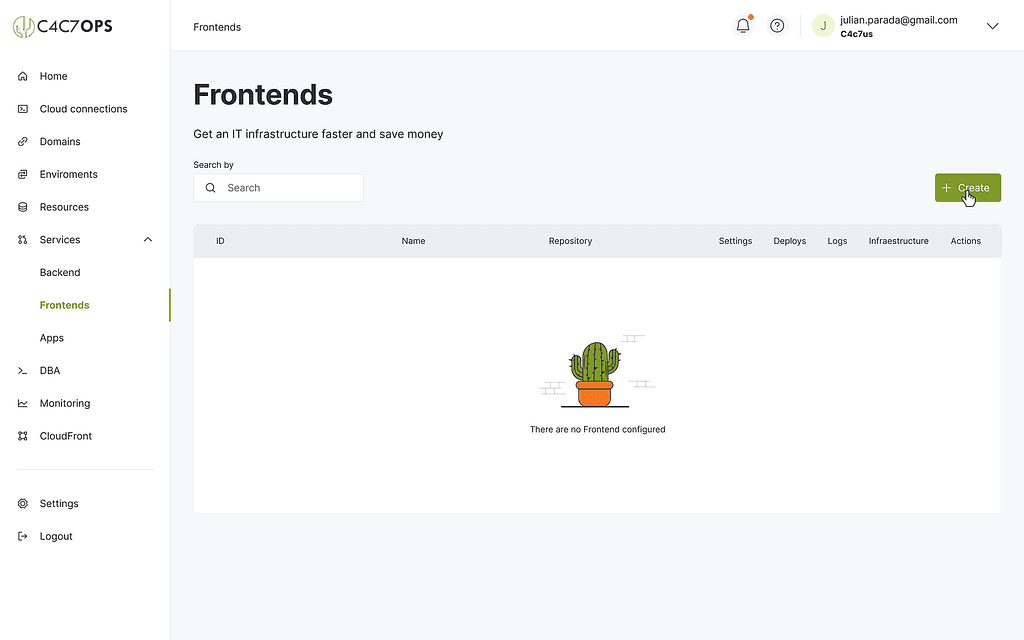
Con la creación previa del ambiente, ahora nos vamos a crear un servicio frontend y desplegarlo, para esto iniciaremos dirigiéndonos hacia la ventana “Frontends” y estando allí pulsamos el botón crear.

Con esto se nos mostrará una pantalla para insertar la información correspondiente de nuestro servicio.
En esta se pueden apreciar los siguientes campos:
- Name: Será el nombre con el que identificaremos nuestro servicio.
- DNS record: Este valor será el prefijo que esperamos se le asigne al host dependiendo del ambiente donde se realizará el despliegue.
- Repository: La url del repositorio donde se encuentra el servicio frontend que queremos desplegar, por ejemplo “[email protected]:user/user-repo.git”.
- Health check path: La ruta (path) dónde se encuentra el health-check del servicio.
- Health check status code: El código de respuesta del estado de la solicitud que se espera de la ruta anteriormente definida. (Recomendamos usar el estado 200)
- Build: Seleccionaremos el lenguaje en el cual está definido nuestro proyecto, también de ser necesario, podremos seleccionar que la compilación se realice usando un archivo dockerfile.
- Content type: En este caso tenemos dos opciones.
- Si el contenido tiene que ser renderizado desde el servidor se requiere Dynamic (Server Side Render)
- Si el contenido que se genera en el build es estático entonces se recomienda usar Static (S3)
Completa los campos y haz clic en “Save“ para continuar.

Se nos mostrará la lista de servicios creados, allí se podrá validar la creación exitosa del registro.

Ajuste de configuraciones relacionadas con los posibles ambientes de despliegue
Ahora pulsamos sobre el botón “Environments” ubicado en el registro creado.
Una vez que hayas creado, simplemente haz clic en el botón ‘Settings’ situado en la tabla para acceder a las opciones de configuración y realizar ajustes.

Ahora podremos ver la configuración ofrecida por defecto para “Runtime settings“, esta es ajustable y personalizable para cumplir con sus necesidades.
Los parámetros de configuración son los siguientes:
- Cpu units: Aquí podemos asignar la cantidad de unidades de CPU que se destinarán al servicio. Esto puede ser útil para ajustar el rendimiento en función de la intensidad de procesamiento de nuestra aplicación.
- Memory: Aquí podemos establecer la cantidad de memoria asignada al servicio. Dependiendo de las necesidades de nuestra aplicación, podemos aumentar o disminuir la cantidad de memoria asignada para garantizar un rendimiento óptimo.
- Minimum and maximum of instances: Podemos especificar la cantidad mínima y máxima de instancias del servicio que deseamos que se ejecuten simultáneamente. Esto nos permite controlar la escalabilidad horizontal del servicio y adaptarlo a la carga esperada.
- Health check grace period in seconds: Este parámetro que se configura en numero de segundos para determinar cual es el tiempo máximo de espera para obtener una respuesta del endpoint que se configura como health check.
- CPU percentage to scale: El porcentaje de uso de CPU lo configuramos para controlar el rendimiento de las instancias. Si se alcanza ese porcentaje, y la configuración lo permite, se inicia una nueva instancia para distribuir la carga de trabajo y evitar la sobrecarga.
- Memory percentage to scale: Este parámetro lo configuramos para controlar el rendimiento de las instancias. Si se alcanza ese porcentaje, y la configuración lo permite, se inicia una nueva instancia.
- Spot instance percentage: Este parámetro lo configuramos para determinar el porcentaje de las instancias del servicio que van serán de tipo spot, recordando que una instancia de tipo spot son instancias mas económicas pero a su vez mas inestables.
- Enable OpenTelemetry: Permitirá hacer uso de OpenTelemetry.
Ahora, personaliza tus ajustes en Runtime settings y, para finalizar, guarda los cambios haciendo clic en ‘Save’.

Para configurar las variables del entorno, selecciona la opción “Create”.

Digite el nombre de la variable y el valor correspondiente.

We verify that it was created successfully.

To set a configuration for "Autoscaling behavior" we select our preferences and click the "Save" button.
You will also be able to configure in this the way the service adjusts based on demand and workload in the environment.

Configure the AWS policies you want to associate with your service and click "Save" to save.

Deploy a frontend service using the C4C7OPS console
With the previous configuration done, we create a deployment of our frontend service. To do this, go to the "Deploys" button in our registry.

On this screen you can access the deployments that have been executed. To launch a new one, click "Create".

To perform the deployment, you must keep in mind the name of the branch, tag, or commit from which you want to deploy. You will also need to select the type of infrastructure that will be used to host and run your web application (Infrastructure refers to the combination of resources and services provided by AWS).
If you select 'Principal Infrastructure', the deployment will be reflected in the domain assigned to the service. On the other hand, if you choose another option, an infrastructure associated with a specific tag will be created, which could be deleted in the future.
Complete the fields and click 'Launch' to continue.

After starting the launch, you will see the following view, which shows a series of deployment statuses:
- Initializing components: Validates that the commit, tag or branch, and other components related to the deploy exist.
- Building projects: This status shows the result of the build process for the project you want to deploy.
- Creating image: At this point, the images that will be launched on your cloud provider are generated.
- Push image to AWS: The images created previously from the project and branch (tag or commit) are sent to your cloud provider.
- Deploy ready: Here the status of the final deployment process will be reflected. It will be successful only if the previous deployment instances are terminated.
Now you just need to wait for it to complete successfully.

Once the deployment is finished, you will be taken back to the previous window, which lists all the deployments made.

There you can get the DNS where the deployment was made and then navigate to it.
This way you can validate the successful deployment of your first frontend service.

Throughout this article, we have walked through the deployment process, highlighting the features and tools that the C4C7OPS console offers to facilitate this process. We hope this guide has provided you with the confidence and knowledge needed to take your web application to the next level using this platform.
Remember that deploying a frontend repository is just the beginning. Continue exploring the capabilities of C4C7OPS and make the most of all the tools and services it offers to improve and grow your web applications.